 GARZK
Requirements
- Windows 10 or Windows 11, 64-bit (Windows 7/8/8.1 and 32-bit are not supported)
- Point Blank Zepetto (any client) or a Point Blank Private Server
- Any mouse; Forward/Back buttons only if your mouse has them
- Run G-Macro as Administrator so game input is read
Install & activate
- Download the installer with the Download button on the home page, run it and follow the prompts.
- Open G-Macro, go to the Info page and copy the Hardware ID (HWID).
- On the home page, paste the HWID into the Activation form, choose a plan, enter your WhatsApp number and pay by QRIS.
- The licence activates automatically once payment is detected. Reopen G-Macro if the status has not changed.
- Log in to the Member Panel with the code sent to your WhatsApp to see your expiry, renew or change your HWID.
Hotkeys
The default hotkeys below can be changed on the app's Hotkey page. Alt + number 1–8 always works as a backup for laptops and TKL keyboards.
| Key | Function | Alt |
|---|---|---|
| F1 | Toggle macro on / off | Alt1 |
| F2 | Change category | Alt2 |
| F3 | Change weapon | Alt3 |
| F4 | Change QC mode | Alt4 |
| F5 | Change action speed | Alt5 |
| F6 | Change switch mode | Alt6 |
| F11 | Change style / hide crosshair | Alt7 |
| F12 | Show the hotkey guide | Alt8 |
Manual controls (delay & drag values)
| Combination | Function |
|---|---|
| ShiftUp / Down | Mouse drag (No Recoil) |
| AltUp / Down | Wait delay |
| CtrlUp / Down | Action delay |
| CtrlShiftUp / Down | QC delay |
| AltShiftUp / Down | Scope delay |
Macro categories & modes
- No Recoil: the mouse pulls automatically against recoil; tune the strength with Mouse drag.
- AWP Sniper (automatic) and AWP Manual: choose FF + 3Q1, Crouch + FF + 3Q1 or Crouch + 3Q1.
- Shotgun: one left click to quick-switch.
- Pistol: one right click to quick-switch.
- Melee: one right click to quick-hit.
Profiles, mouse mapping & crosshair
Profiles decide which macros are active. The category and weapon hotkeys only cycle through macros enabled in the profile in use. You can keep many profiles and import or export them as backups.
If the profile in use has no enabled macros at all, the macro will not run and mouse clicks pass through to the game as normal.
On the Mouse page each of the 5 buttons (left, right, middle, Forward, Back) can be given an extra function, such as changing weapon or switching profile. For the left, right and middle buttons the original click is still sent to the game. Mapping is saved per profile.
The Crosshair page offers 11 styles with colour, outline, size, thickness, gap, length and offset you can change with a live preview.
Recommended game settings
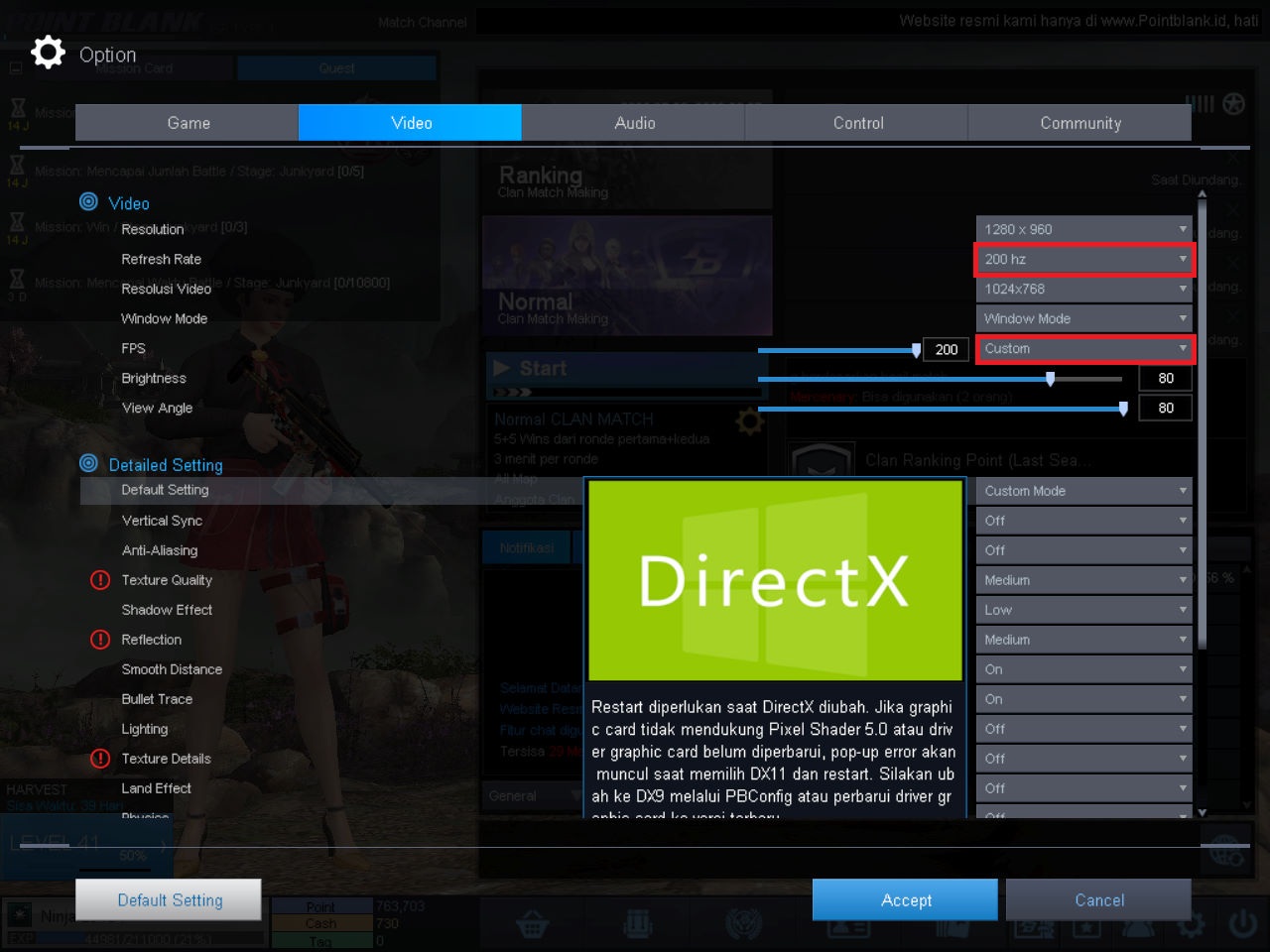
- Video: choose custom FPS and raise it to 200. For refresh rate, pick the highest your monitor supports.
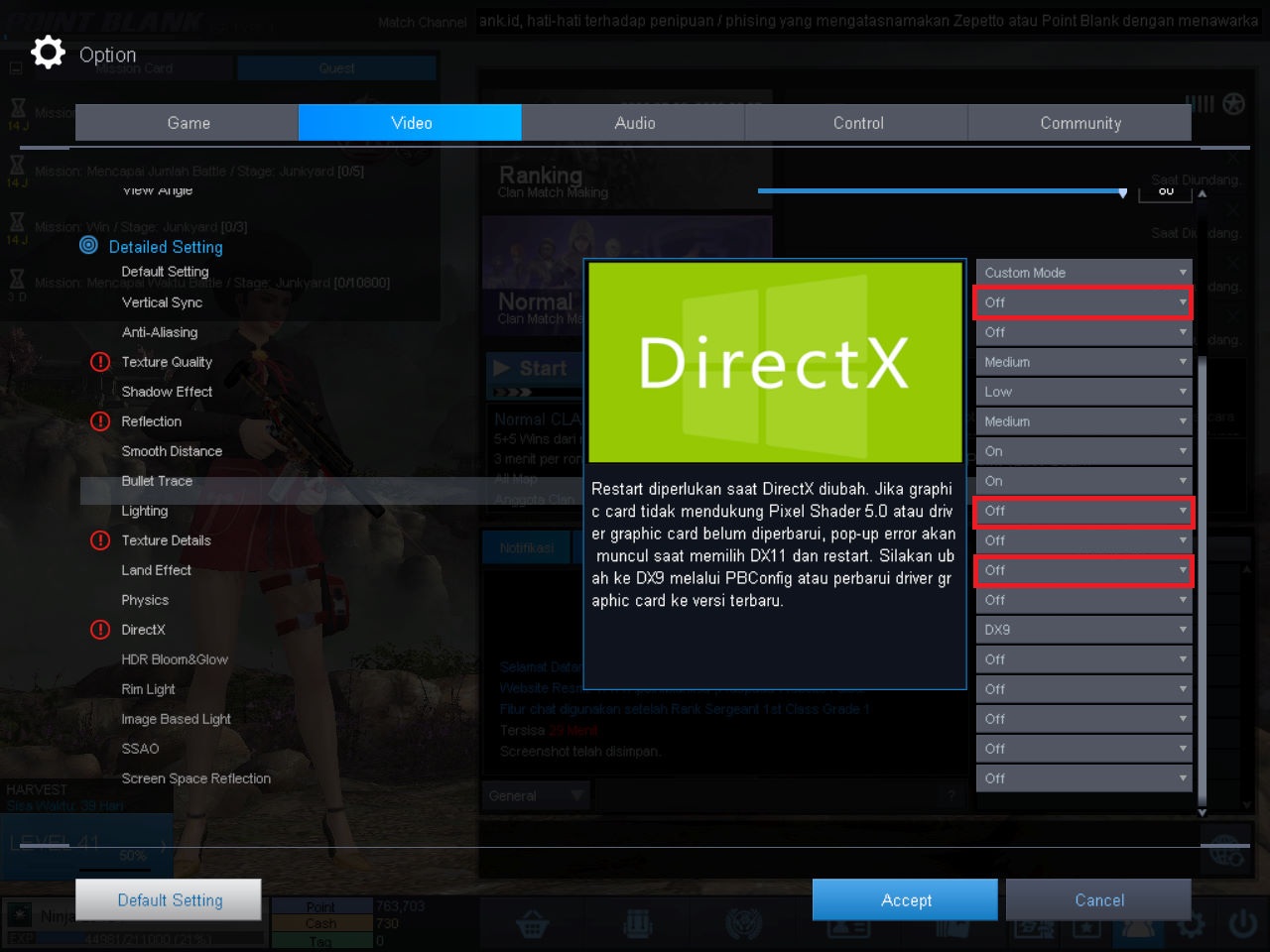
- Detail: turn off Land Effect (bullet marks) and Lighting.
- Game: make sure every heavy option highlighted in the guide video is OFF.
- Open the Optimizer page in G-Macro for process priority and memory cleanup.
Changing your HWID (new PC)
A licence is bound to one HWID. When you move to a new PC or laptop, change the HWID in the Member Panel: log in with the WhatsApp code, choose Change HWID and enter the new HWID from the app's Info page.
Each licence has a quota of 100 HWID changes (unlimited on the Lifetime plan). Your remaining quota is shown in the Member Panel.
Troubleshooting
The macro does not run at all
Check in order: (1) the sidebar status must read "Macro on" (press F1); (2) run G-Macro as Administrator; (3) the profile in use must have at least one enabled macro, and the selected macro must be enabled in it; (4) the licence must be active on the Info page; (5) make sure you are on 64-bit Windows 10/11.
The AWP swap animation is still visible
Usually the delay is still too high. Lower QC Delay and Wait Delay little by little with the manual hotkeys (Ctrl + Shift + Down and Alt + Down) until the transition is smooth.
F1–F12 keys are awkward on my laptop
Remap them on the Hotkey page: click the button, then press the new key. Alt + number 1–8 also always works as a backup.
FPS drops while the macro is on
Follow the game settings section above (Land Effect and Lighting OFF, FPS up to 200) and turn on the options on the Optimizer page.
My antivirus shows a warning
Apps that read mouse and keyboard input are sometimes flagged as false positives. Check the latest scan results on the VirusTotal page, then add the G-Macro folder to your antivirus exclusions if you are sure the file came from this site.
Timing feels off (laptop/PC)
Open the Device page. G-Macro detects Laptop or PC automatically; if it is wrong, pick the right device manually.